Using MQTT Explorer
MQTT Explorer is a GUI-based MQTT client that lets you connect to an MQTT broker, browse topics, and publish messages without writing any code. This guide walks through installing and configuring MQTT Explorer to communicate with a Veva III device using Inzwa's MQTT broker. For background on the Veva III MQTT API and available topics, see the MQTT page.
Install and Configure MQTT Explorer
-
Download and install MQTT Explorer.
-
Open MQTT Explorer.
-
Click Connections in the upper left corner.
-
Give your connection a name and set the Host to
mqtt.inzwa.cloud.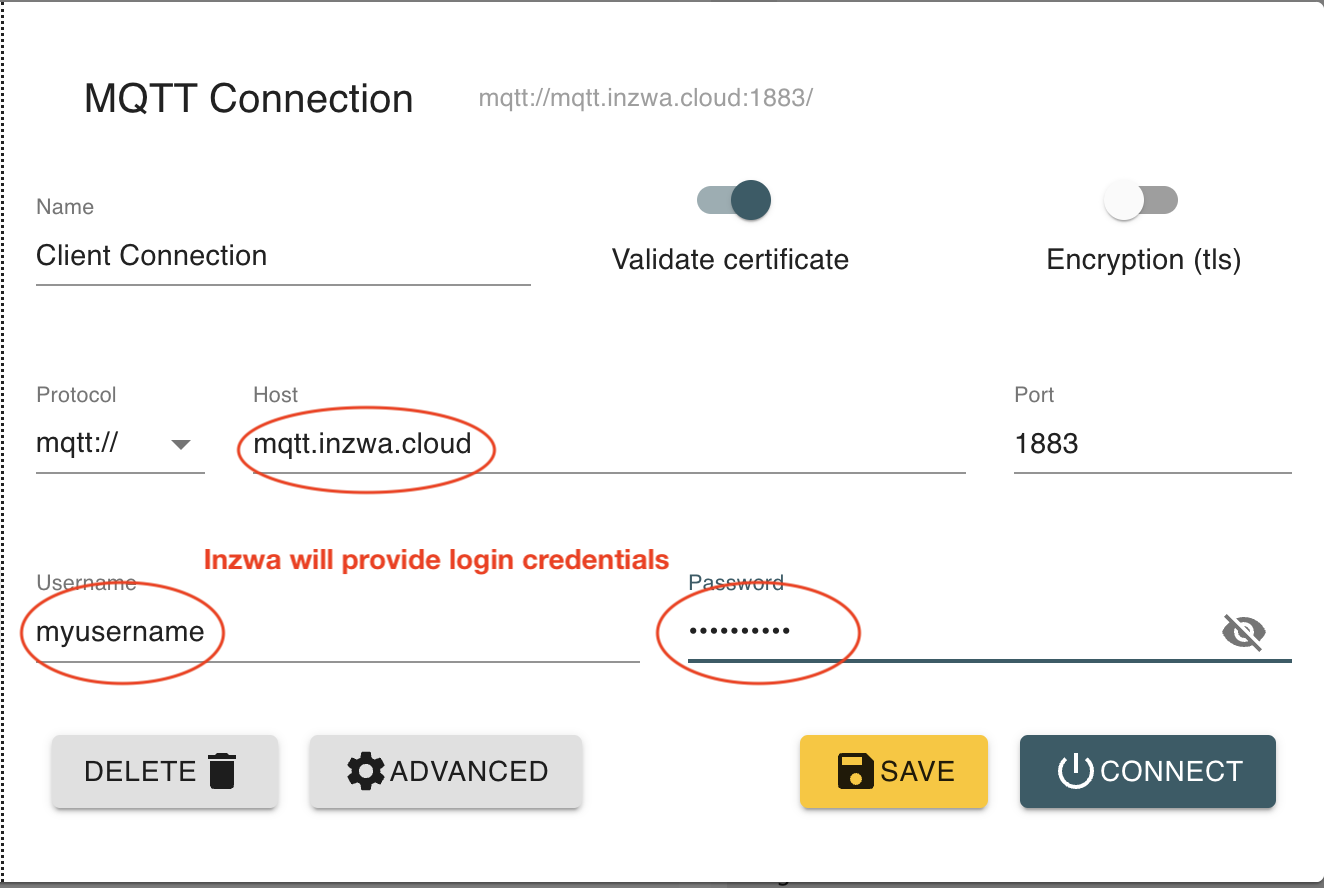
-
Enter the username and password provided to you by Inzwa.
-
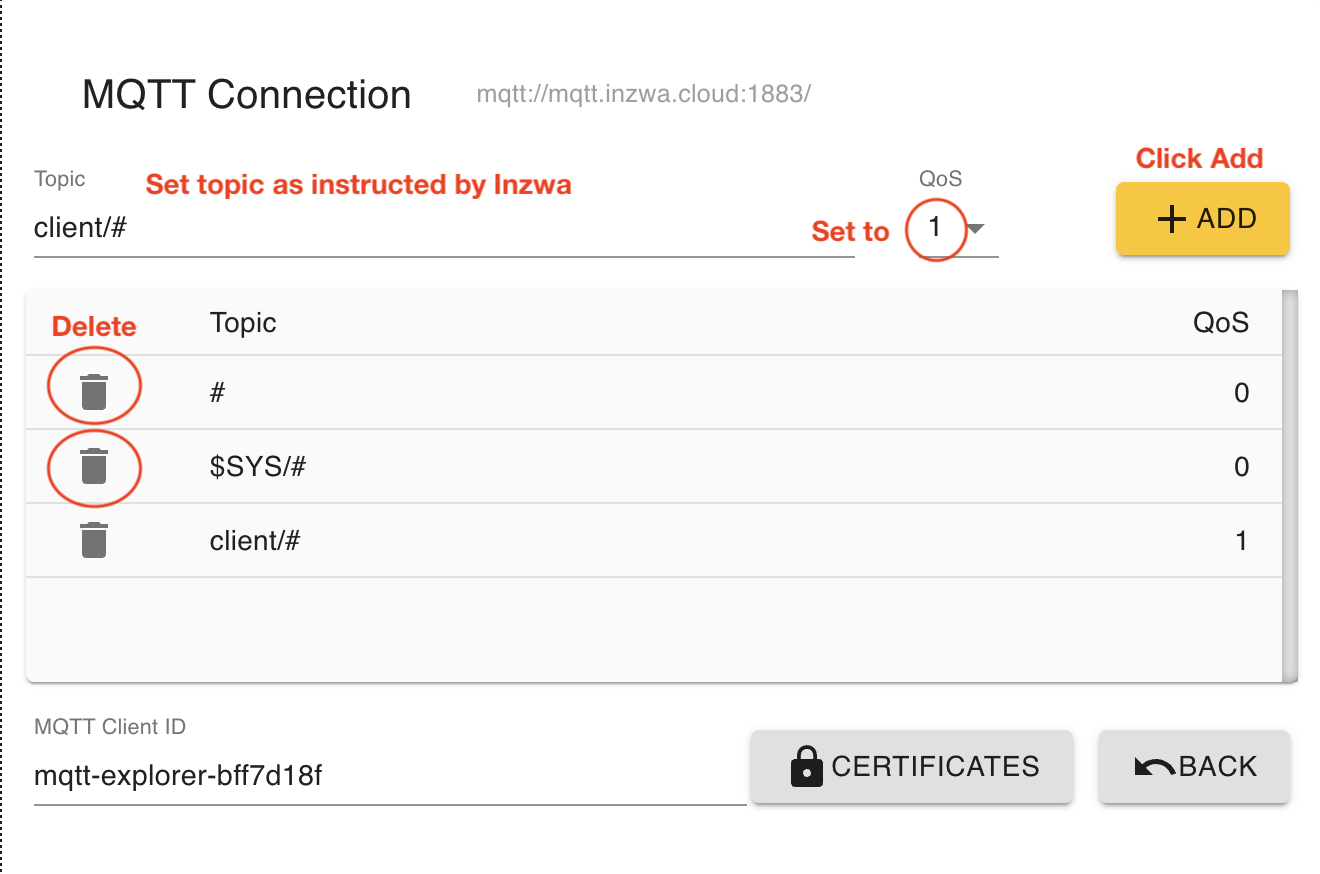
Click the Advanced button.
-
Enter the topic provided by Inzwa (e.g.
client/#), set QoS to 1, then click Add. -
Remove the two default topics that appear in the list.
-
Click Back, then click Save.
-
Click Connect to connect to the broker.
Send a Command
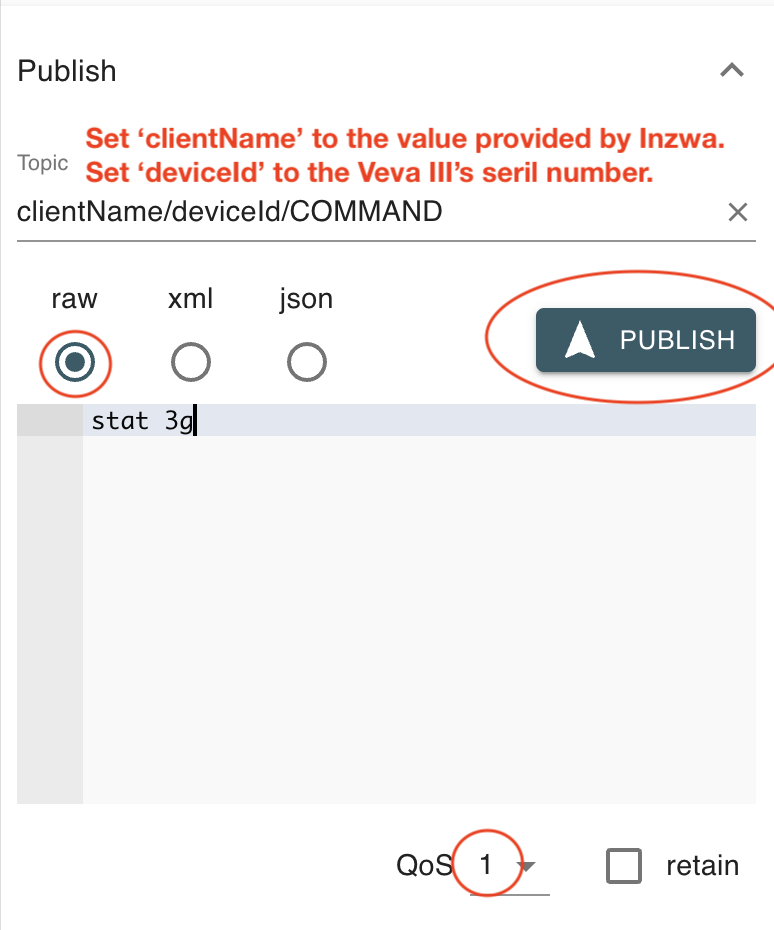
Commands for the Veva III are documented in the Command Reference section. The example below uses the stat 3g command, which returns cellular modem information.
-
After connecting to the MQTT broker, locate the Publish window on the right side of the screen.
-
Set the topic to
clientName/deviceId/COMMAND, whereclientNameis provided by Inzwa anddeviceIdis the serial number of the device you want to send a command to. -
Select the Raw radio button.
-
Set QoS to 1.
-
Type your command in the message field, then click Publish.
Viewing Responses
After publishing a command, the target device will appear in the left pane. Click the arrow next to the device to expand it and see the COMMAND topic. When the device responds, its reply will appear under the REPLY topic in the same list.
Response Time
It can take up to 5 minutes for the Veva III to respond to a command.
Alarms and Notifications
When the device sends alarms or notifications, they will appear in topics named ALARM and NOTIFY alongside the COMMAND and REPLY topics.
Sending Additional Commands
When sending further commands, confirm that the topic shown in the Publish window is set to the COMMAND topic before clicking Publish. Multiple commands can be sent by entering a new command after clicking Publish. The Veva III will respond to all queued commands.