Getting Started
Overview
Inzwa Crack Gauge Reader (CGR) is a mobile app for iOS and Android that captures and measures displacement readings from Avongard Tell-Tale and Tell-Tale Plus crack gauges. The app uses computer vision to analyze photos of the gauge, automatically detect displacement values, and upload the results to Inzwa Cloud.
How It Works
- Position your phone's camera over the crack gauge
- The app captures and crops the image using on-screen guide lines
- Computer vision detects the gauge crosshair position and calculates displacement
- Results are displayed and can be manually adjusted if needed
- Displacement data is uploaded to Inzwa Cloud for tracking and reporting
Supported Gauge Types
| Gauge Type | Horizontal Range | Vertical Range |
|---|---|---|
| Avongard Tell-Tale | -20.0 to +20.0 mm | -10.0 to +10.0 mm |
| Avongard Tell-Tale Plus | -25.0 to +25.0 mm | -10.0 to +10.0 mm |
Installation
Download Inzwa CGR from the Apple App Store. The app requires iOS 15.0 or later and is compatible with iPhone devices.

Download Inzwa CGR from the Google Play Store. The app requires Android 15 (API 35) or later.

The app requires camera permissions to capture gauge photos. You will be prompted to grant camera access when you first use the camera feature.
Home Screen
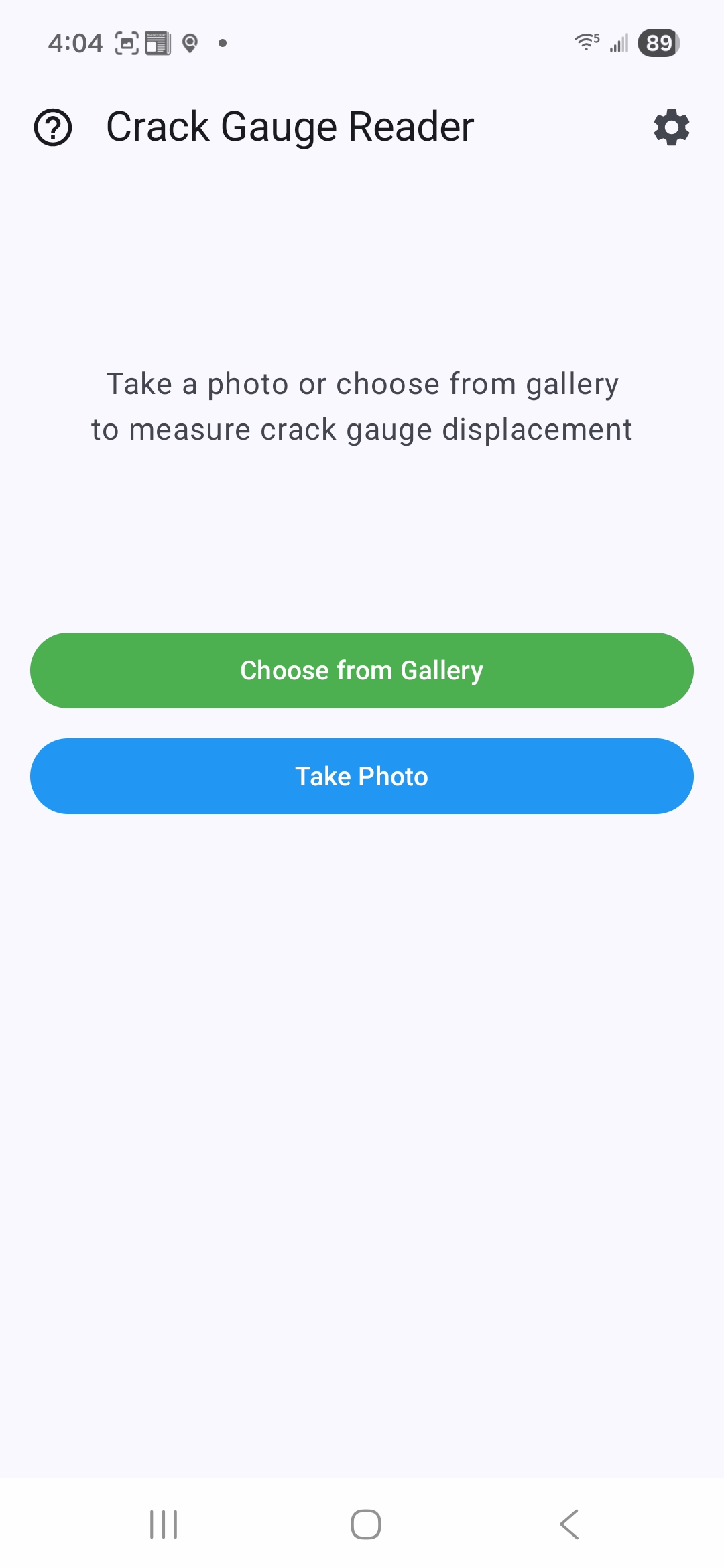
When you first open the app, you'll see the home screen. This is the main interface where you'll view results, capture photos, and send data to Inzwa Cloud.
The home screen contains the following elements:
- Help - Tap the question mark icon in the top-left corner to open the user guide.
- Settings - Tap the gear icon in the top-right corner to access app settings.
- Image Display - Shows the most recently captured or selected gauge photo with processing annotations. Tap the image to view it in fullscreen.
- Displacement Results - Displays the horizontal and vertical displacement values in millimeters.
- Action Buttons - Buttons for capturing photos, selecting images, and uploading data.
Capturing a Gauge Reading
There are two ways to acquire a gauge image for processing:
Taking a Photo
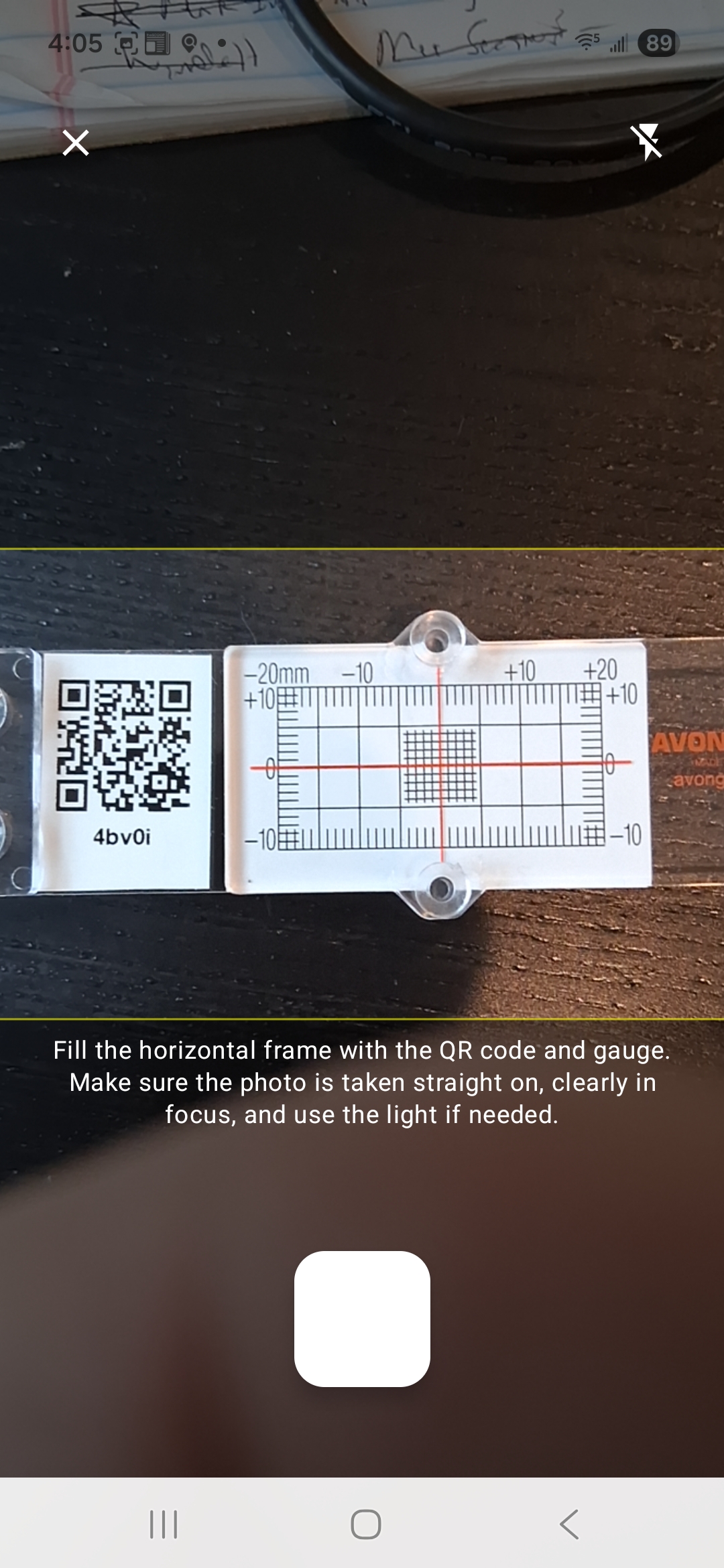
- Tap the Take Photo button on the home screen.
- The camera screen will appear with two horizontal yellow guide lines.
- Frame the gauge between the guide lines, ensuring the image is:
- Taken straight on (not at an angle)
- Clearly in focus
- Well-lit (use the flash if needed)
- Tap the Capture button. A shutter sound will play to confirm the photo was taken.
- The app will process the image and display the results on the home screen.
Position the gauge so that both the QR code label and the gauge itself are visible between the guide lines. The app will automatically crop the image to the area between the lines.
For accurate readings, ensure the photo is taken perpendicular to the gauge surface. Angled photos may result in incorrect displacement values.
Choosing from Gallery
- Tap the Choose from Gallery button on the home screen.
- Select a previously captured gauge photo from your device's photo library.
- The app will process the selected image and display the results.
Discard confirmation
If a gauge reading has already been processed and the Send to Inzwa Cloud button is visible, tapping Take Photo or Choose from Gallery will ask you to confirm before discarding the unsent reading. Tap Discard to proceed with a new capture, or Cancel to return to the current reading.
Reviewing Results
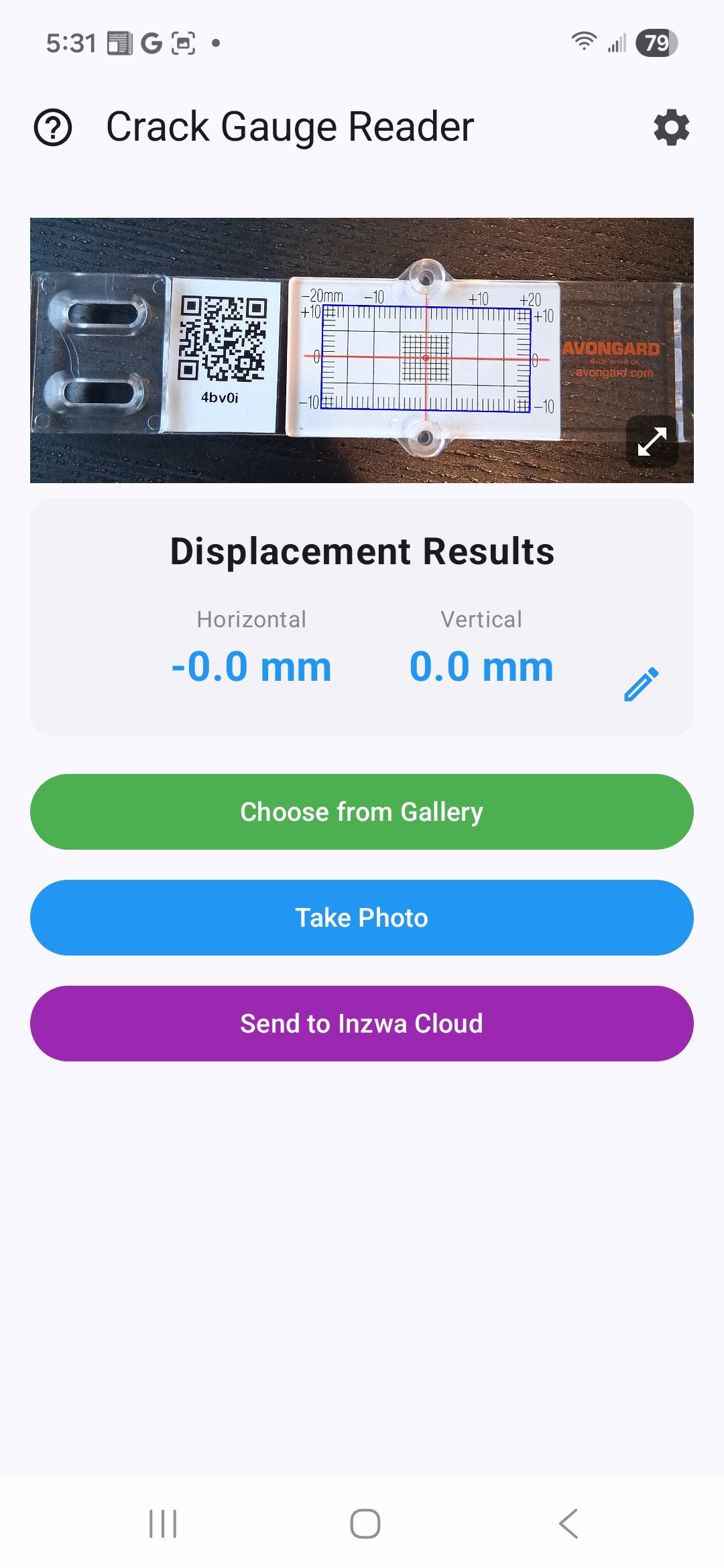
After the app processes a gauge image, the displacement results are displayed on the home screen.
Displacement Values
The results card shows two values:
- Horizontal - The horizontal (X-axis) displacement in millimeters
- Vertical - The vertical (Y-axis) displacement in millimeters
Positive values indicate movement to the right (horizontal) or upward (vertical). Negative values indicate movement to the left or downward.
Editing Results
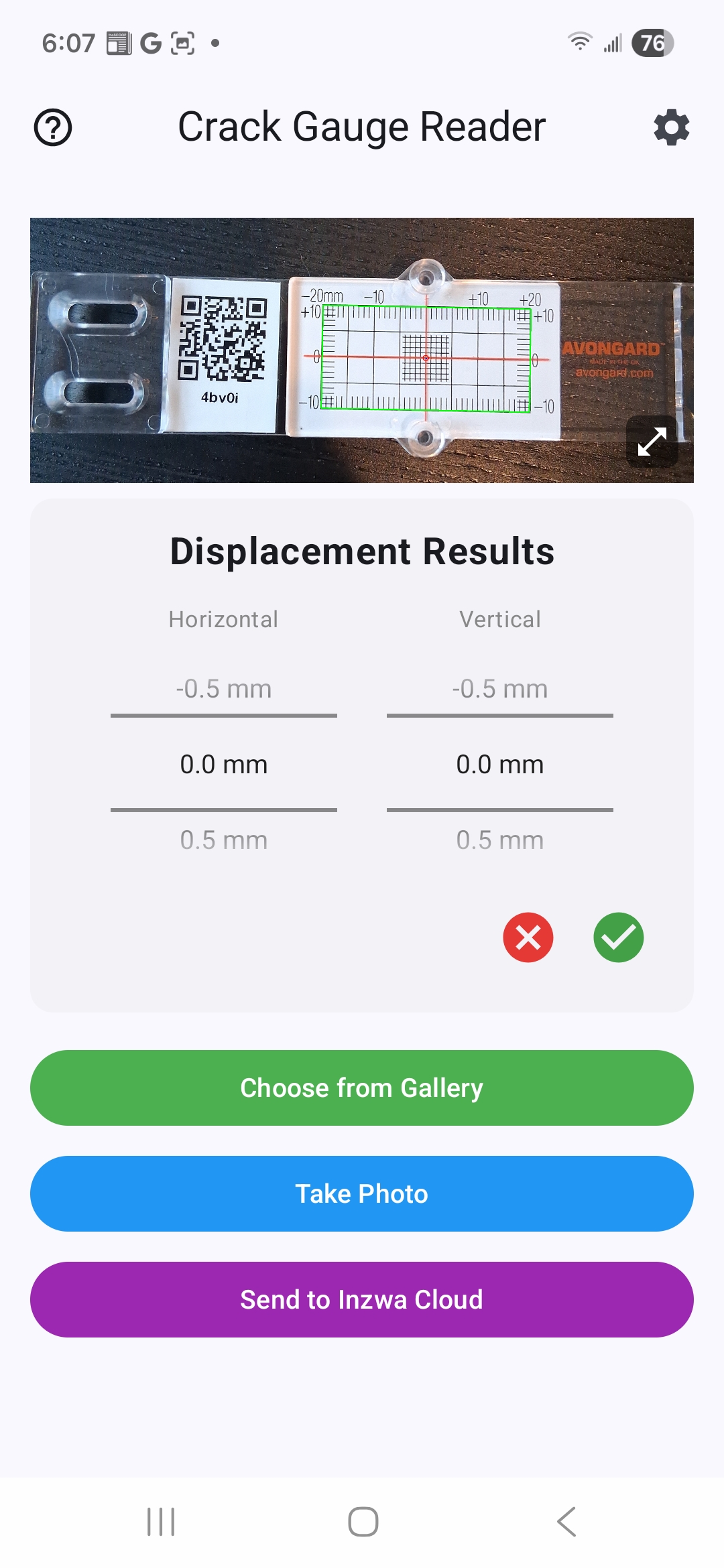
If the computer vision results need adjustment, you can manually correct the displacement values:
- Tap the Edit button (pencil icon) on the displacement results card.
- Use the scroll wheels to select the correct horizontal and vertical values.
- Horizontal range: -25.0 to +25.0 mm (in 0.5 mm increments)
- Vertical range: -10.0 to +10.0 mm (in 0.5 mm increments)
- Tap the checkmark button to save your changes, or the X button to cancel.
Viewing the Full Image
Tap the processed image on the home screen to open it in fullscreen mode. This allows you to inspect the annotated image in detail, including the detected crosshair position and grid overlay.
Sending Data to Inzwa Cloud
After capturing and reviewing a gauge reading, you can upload the displacement data to Inzwa Cloud for tracking and reporting.
Prerequisites
A QR code must be detected in the gauge image for cloud upload to work. The QR code contains the device token that identifies the gauge in Inzwa Cloud. If no QR code is detected, the cloud upload button will not appear.
Uploading Data
- After a successful reading with a detected QR code, the Send to Inzwa Cloud button will appear on the home screen.
- Tap Send to Inzwa Cloud.
- If displacement tolerance monitoring is enabled, the app compares the current reading against the last submitted reading for that gauge. If the change exceeds the configured tolerance, an alert is displayed showing the previous and current values and the difference.
- Tap Send Anyway to proceed with the upload.
- Tap Cancel to return to the home screen without sending.
- A confirmation dialog will appear showing the displacement values that will be uploaded.
- Tap Send to confirm, or Cancel to abort.
- The Send to Inzwa Cloud button disappears immediately when you confirm, and the app will display a success or error message once the upload completes.
Once you confirm a send, the button is removed to prevent duplicate submissions. To upload new data, capture a new gauge reading.
Data Uploaded
The following data is sent to Inzwa Cloud with each submission:
| Field | Description |
|---|---|
| Horizontal Displacement | X-axis value in millimeters |
| Vertical Displacement | Y-axis value in millimeters |
| Timestamp | Date and time extracted from the photo's EXIF data |
| Device Token | Gauge identifier from the QR code |
Settings
Tap the gear icon on the home screen to access app settings. The settings screen has the following sections:
Photo Library
| Setting | Description |
|---|---|
| Auto-save annotated image | When enabled, the processed image with annotations is automatically saved to your photo library after processing. |
| Save original image | When enabled, the unprocessed original capture is also saved to your photo library. |
Appearance
| Setting | Description |
|---|---|
| Dark Mode | Toggles dark mode on or off throughout the app. |
Alerts
| Setting | Description |
|---|---|
| Displacement Tolerance | Sets the maximum change in displacement (in mm) allowed before a warning is shown when uploading. If the horizontal or vertical displacement differs from the last submitted reading by more than this value, an alert prompts you to confirm before sending. Set to Disabled to turn off tolerance monitoring. |
Available tolerance values: Disabled, 0.5 mm, 1.0 mm, 1.5 mm, 2.0 mm, 2.5 mm, 3.0 mm (default: 1.0 mm).
Tolerance monitoring tracks readings per gauge. The comparison is always against the last reading that was successfully confirmed for upload on that specific gauge's QR code.
Developer
| Setting | Description |
|---|---|
| Test Mode | When enabled, a Load Test Image button appears on the home screen and debug information (QR code, EXIF date/time, GPS coordinates) is displayed with results. |
Test Mode is intended for troubleshooting and development purposes. It provides additional diagnostic information that is not shown during normal use.
Troubleshooting
The app does not detect the correct displacement values
- Ensure the photo is taken straight on, perpendicular to the gauge surface.
- Make sure the image is well-lit and clearly in focus.
- Verify that the entire gauge grid is visible in the photo.
- Use the edit feature to manually correct the values if needed.
The Send to Inzwa Cloud button does not appear
- A QR code must be detected in the image. Ensure the QR code label is visible between the camera guide lines when capturing.
- Try recapturing the image with the QR code clearly visible.
A tolerance warning appears every time I send a reading
- The displacement tolerance in Settings → Alerts is set lower than the natural variation in your readings. Try increasing the tolerance value, or set it to Disabled if you do not need change monitoring.
- If the change is genuinely unexpected, review the previous and current values shown in the alert before deciding whether to send.
Cloud upload fails with a network error
- Verify that your device has an active internet connection (Wi-Fi or cellular data).
- Try again after a few moments. If the issue persists, contact your system administrator.
The camera screen is black or does not load
- Ensure the app has been granted camera permissions in your device settings.
Go to Settings → Inzwa CGR → Camera and enable access.
Go to Settings → Apps → Inzwa CGR → Permissions → Camera and select Allow.